Logo Intro Maker
Transparent logo intro for OBS.
Your logo in 3D as a transparent WebM video: one file that OBS Studio plays over your camera, gameplay or starting-soon scene, as a stinger transition or a media source.
No account, no upload: your logo stays in your browser.
Looks that fit

Chrome Logo Reveal
Polished mirror metal swings in, a light strip sweeps across, then a clean hold.
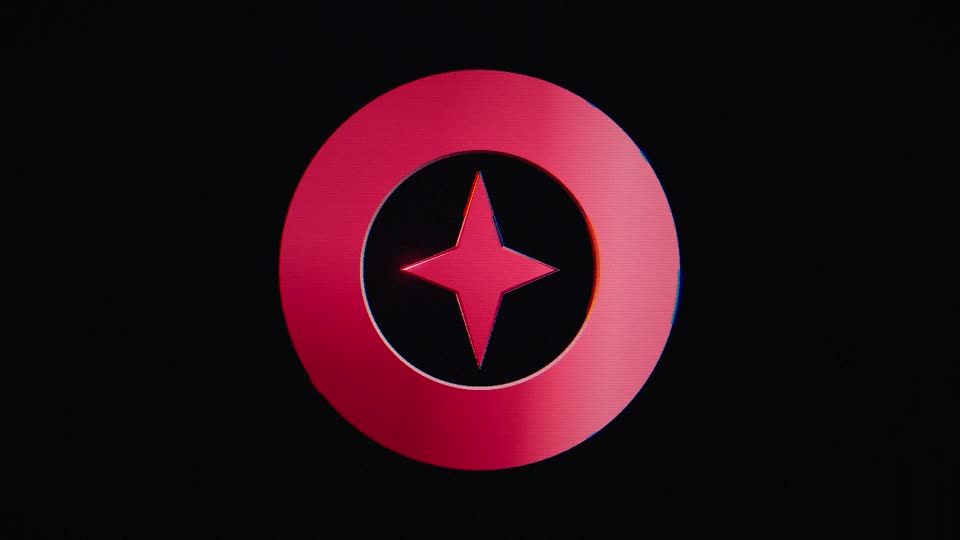
Glitch Logo Intro
Torn frames and RGB split cut your logo in, then two short glitches after it lands.

Gold Logo Reveal
Polished gold, falling glitter and one warm light sweep. For weddings and premium brands.
One file with the background left out
Choose Transparent WebM as the format. You get a single video file where everything around the logo is see-through, so whatever OBS shows underneath stays visible. If you pick a sound, it is inside the file. Glow is left out, as in every transparent export, because it needs a background to shine on; the logo's own colours, metal and light stay, so Glitch, Chrome and Gold hold up better than Neon.
Transparent WebM is free to try at 720p with a lunebit.com mark across the middle. Pro exports it without the mark, up to 4K, at 24, 30 or 60 fps. The tool makes WebM in desktop Chrome and Edge; in other browsers it offers transparent PNG frames instead.
As a stinger transition
- In the Scene Transitions dock, press +, choose Stinger and give it a name.
- Under Video File, browse to your WebM.
- Set Transition Point Type to Time (milliseconds) and choose the Transition Point: the moment OBS cuts to the next scene.
A logo intro does not cover the whole screen, so the cut shows around the logo. A transition point early in the intro, such as 300 ms, switches scenes while the logo flies in, and the logo then lands over the new scene.
As a media source
- In Sources, press +, choose Media Source and create a new one.
- Keep Local File ticked and browse to your WebM.
- Leave Loop off, and keep Restart playback when source becomes active and Show nothing when playback ends on, so the intro plays each time you switch to the scene and then gets out of the way.
Match the canvas: export 16:9 at your stream's size (1080p for most streams) and your output frame rate.
On a website
The same WebM can play over a page in Chrome, Edge and Firefox with a muted, autoplaying <video> element. Safari does not show transparency in WebM, so give Safari visitors a still image or the MP4 on your page's background colour instead.
In a video editor
Editors handle WebM transparency unevenly. For Premiere Pro, DaVinci Resolve or After Effects, use the transparent PNG frames instead; for CapCut and phone editors, use the MP4.
Questions
Which plan do I need for transparent WebM?
Pro exports it without a mark, up to 4K. You can try it free at 720p first; those videos carry a lunebit.com mark across the middle.
Why does my WebM show a black background?
Many video players ignore transparency and draw black behind the logo. OBS Studio, and Chrome, Edge and Firefox on a web page, show it see-through. Try the file in OBS before you go live.
Can I use it as a starting-soon or BRB animation?
Yes. Put it on that scene as a media source above your background. Tick Loop if it should keep playing; the intro ends on a held logo, so a loop restarts the reveal every few seconds.
Can I use it on a monetised stream?
Yes. Transparent WebM is a Pro export, and Pro covers your own monetised channels as well as client work.
Pay once. Nothing to cancel.
One payment, yours for good. Full refund within 14 days.
$0no account needed
- Unlimited live previews
- 720p MP4 export
- Small corner watermark ("made with lunebit.com")
- Try the transparent background at 720p (watermarked)
- No account, no card
$19one-time
- No watermark
- MP4 up to 1080p
- Unlimited exports
- All 8 looks, with fixes and improvements
- Use in your own projects: your business's videos and ads, monetised channels, your own games and apps
- Pay once, no subscription
$49one-time
- Everything in Personal
- 4K export
- Transparent background up to 4K: PNG frames for Premiere, Resolve and After Effects, WebM for OBS and web pages
- Batch export: several ratios and sizes in one ZIP
- All future look packs
- Client-work licence
Have Personal? Upgrade any time for $30, the difference.
Ready when your logo is.
Preview free in your browser. Pay once for the full-quality file.